PDF Toolbox
- 4.4
- Rating
- 500.00K
- Installs
- Free
- Price
 Analysis by App-foxy
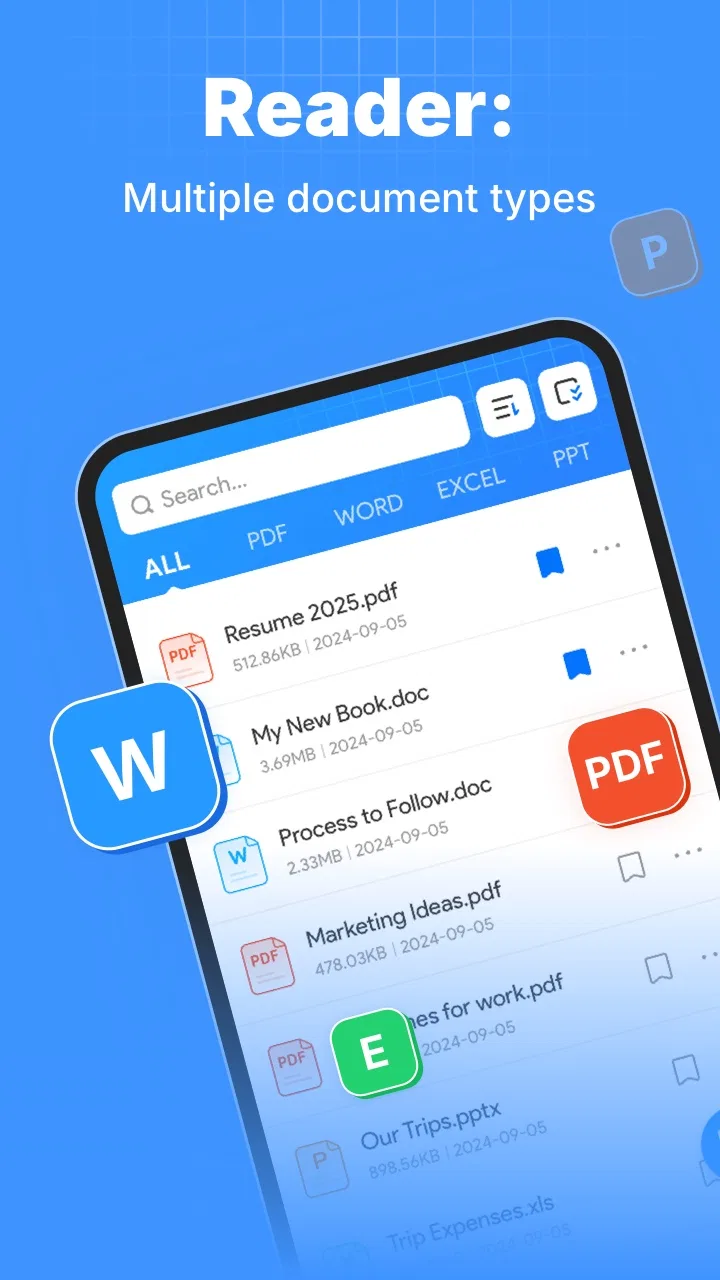
Reading a PDF on a phone is usually easy; working with one is not. Small screens make it awkward to find the important paragraph, mark a passage, or keep track of several pages. PDF Toolbox is built around that everyday problem. Developed by wydevteam, this free productivity app focuses on making documents easier to read, scan, and annotate rather than trying to become a full office suite.
After spending time with it, I see the app as a practical middle ground between a basic PDF viewer and a heavier document-management tool. Its strongest idea is simple: reduce the friction between opening a document and understanding what deserves your attention. That makes it particularly useful for study notes, work papers, forms, manuals, and any PDF you need to inspect away from a computer.
The app is available for everyone and runs on Android devices using version 6.0 or newer. The current release is 1.0.5, and its free availability makes it easy to try without turning the decision into a financial commitment. Its average rating is 4.6 from around three thousand ratings, while the app has passed one hundred thousand installs. Those figures suggest that it has found an audience, but I would still judge it by the way it fits your document habits rather than by popularity alone.
You May Also Like

 Blood Strike: 2.5 Anniversary
Blood Strike’s Loadouts Turn Every Drop Into a Tactical Gamble
A close look at Blood Strike’s custom loadouts: how fast access to signature weapons reshapes its battle royale rhythm, rewards preparation, and narrows the gap between fights.

 Pandora - Music & Podcasts
Pandora’s Music Is Easy to Start, but Harder to Recover
Pandora’s strength is its low-effort path from a seed to a station. Its weak spot is how much confidence it asks you to place in connection, setup, and quiet recovery.

 8 Ball Pool
 Is Built on Rivalries, Rematches, and Routine
A close look at the rivalries, rematches, shared routines, and unanswered safety questions that turn a quick pool match into a persistent mobile community.

 Samsung Music
’s Quiet Strength Is Playing What You Already Own
Its reach comes less from spectacle than from dependable access to a personal library. That simplicity is both the app’s strongest retention engine and its ceiling.

 AccuWeather: Weather Radar
AccuWeather Review: A Quick, Clear Forecast for Everyday Decisions
For everyday plans, the best forecast is the one you can understand quickly. AccuWeather makes rain timing, radar, and local conditions easy to act on, with a few trade-offs.

 Hill Climb Racing
Why Hill Climb Racing Still Turns Crashes Into One More Run
A tiny car, a bumpy hill and one more upgrade: Hill Climb Racing keeps resurfacing because its simple chaos makes every near-miss feel personal.
More From Our News Desk
View All News


Why the reading and annotation focus matters
The central capability here is not simply opening a PDF. Most modern phones can already do that. The useful difference is the attempt to make a document easier to inspect and mark while you are holding a phone instead of sitting at a desk.
That distinction matters because PDF reading has two very different stages. First, you need to scan the material and decide whether a page deserves attention. Then you need to annotate or revisit the relevant parts. A conventional viewer often treats both stages as the same task: display the page and leave the rest to you. PDF Toolbox is more appealing when your problem is not access, but turning a long document into something you can work through.
I found this especially relevant for documents that are too important to skim casually but too short-lived to justify printing. A meeting brief, a rental document, a class handout, or a product manual may only need a few highlights and notes. On a computer, that workflow is familiar. On a phone, it can become a cycle of zooming, dragging, losing your place, and reopening the file. An app centered on reading and annotation can remove some of that mental overhead.
The benefit is also about attention. When a document is displayed clearly and the marking tools are close at hand, I am more likely to identify the parts that need action. That is different from merely storing a PDF. The app becomes useful at the moment when reading needs to lead to a decision, a reminder, or a follow-up.
What the focused design changes in daily use
A dedicated PDF toolbox is most valuable when you do not want to switch between several unrelated applications. A generic file manager may locate a document, a browser may open it, and a note app may hold your comments, but moving between those tools breaks the connection between the text and your thoughts. Keeping the reading and marking process together makes the document itself the center of the workflow.
That does not mean it replaces every other productivity app. I would not treat it as a complete writing environment or a substitute for a desktop editor. Its role is narrower and, in my view, more useful: help you examine a PDF, identify important content, and leave visible clues for the next time you return to it.
There is a subtle advantage in using annotations as navigation aids rather than as decoration. If I mark a paragraph because it contains a deadline, a definition, or a question, the mark becomes a map of the document. On a second reading, I can move through the material with a purpose instead of starting from the first page every time. This is one of the less obvious ways a reading-focused tool can save time: it reduces repeated searching, not just initial reading.
How I would use it with a real document
Imagine receiving a long work document shortly before a meeting. You open it on your phone while commuting and do not have time to read every page in detail. With PDF Toolbox, the sensible approach is not to annotate everything. I would scan for headings, names, figures, decisions, and sections that require a response. I would mark only those passages and add short reminders where my own context is needed.
Later, before the meeting, those marks provide a faster route back into the document. Instead of searching through every page, I can review the sections I already identified as important. The key trade-off is discipline: annotations work best when they remain selective. If every sentence is marked, the document becomes visually noisy and the advantage disappears.
The same workflow suits a student reviewing reading material. On the first pass, I would highlight definitions and arguments rather than entire blocks. On the second pass, I would use those marks to build a short summary in another note-taking space if necessary. PDF Toolbox can support the reading stage well, but I would still use a dedicated notes app for a polished essay outline or a large collection of connected ideas.
For manuals, the app can be useful in a different way. I might mark the page that explains a setup step, note a warning beside a procedure, and return to that page while handling the device. This is more practical than taking a screenshot of every relevant instruction because the original page remains available in context. The limitation is that the phone must remain comfortable to use while you are switching between the document and the physical task.
A workflow that avoids common annotation mistakes
My advice is to decide what each mark means before you begin. A highlight can identify information to remember, while a note can identify an action, question, or uncertainty. Mixing those purposes makes later review slower. Even a simple personal rule—marks for important text, notes for things I must do—can make the document much easier to revisit.
I would also avoid marking during the first few seconds of every page. Scan first, then annotate. This small pause prevents a common problem with mobile PDF tools: reacting to the first interesting sentence and ending up with too many marks before understanding the document’s structure.
Another useful habit is to review annotations at the end of a reading session. If a mark no longer seems important, remove it. If a note implies an action, transfer that action to your normal task list. The app can preserve your understanding of the PDF, but it should not become the only place where deadlines or commitments live. That separation keeps document review and task management from becoming confused.
The best scenario for PDF Toolbox
The strongest scenario is a person who regularly receives PDFs and needs to make quick, focused decisions from them on an Android phone. Think of a student checking course material between classes, a freelancer reviewing a client brief, or a homeowner following instructions for a repair. These users need more than passive viewing but less than a full desktop publishing setup.
In that situation, the app’s free price is important. You can test whether its reading and annotation approach matches your routine without first buying a premium document suite. The Everyone content rating also makes it suitable for general household or school use, although the real question is still whether the workflow fits the user’s needs.
I would particularly recommend trying it with one document that causes repeated frustration. Choose a PDF you normally open, skim, close, and then reopen because you cannot remember where the important section was. Use selective highlights and brief notes, then return to the file later. That test will tell you more than opening a short, simple document once, because the app’s value appears when navigation and recall matter.
For someone who reads only an occasional PDF, the benefit may be modest. A standard viewer may already be enough for a single bill or one-page instruction sheet. PDF Toolbox earns its place when documents are part of a recurring routine and you need a reliable way to leave a trail through them.
Where the usual alternatives still have an advantage
The obvious alternative is a general PDF viewer that opens files quickly and connects smoothly with cloud storage or other phone services. Those apps may be better if your priority is broad file compatibility, sharing, printing, or integration with an existing work account. A focused reading tool is not automatically better at every surrounding task.
Desktop PDF editors remain the stronger choice for complex document work. If you need precise layout changes, advanced form handling, extensive collaboration, or detailed document administration, a larger screen and a mature desktop application will usually be more comfortable. I would not choose a phone-first toolbox for a job that depends on pixel-level control.
Note-taking apps also have a different strength. They are better for combining information from many sources, linking ideas, and building a long-term knowledge system. PDF Toolbox makes more sense when the original document is still the main object of attention. If your goal is to transform several PDFs into a research database, you may outgrow its focused approach and prefer a broader notes platform.
There is also a trade-off between simplicity and depth. A narrower app can feel less overwhelming because it keeps the task centered on the document. At the same time, users who expect every advanced PDF function in one place may find that focus limiting. I see that as a choice rather than a flaw: the app is easier to understand when you want reading and annotation, but less compelling when you want a complete document office.
Small friction points worth considering
Working with PDFs on a phone is inherently constrained by screen size. Even a well-designed reading experience cannot make a dense contract feel like a printed page or a large monitor. You will still zoom, reposition the page, and sometimes choose between seeing the whole layout and reading the text comfortably. The app can reduce those interruptions, but it cannot remove the physical limits of a small display.
Annotation itself requires care. Touch input is convenient for quick marks, yet it is less precise than a mouse or stylus. If you need extremely exact selections or detailed handwritten work, a tablet or computer will be the better environment. I would use the phone for identifying and recording important passages, not for pretending it is a full desktop workstation.
There is a second limitation in the way people often use marked documents. An annotation is only useful if you can understand it later. A vague note such as “check this” may feel helpful in the moment but provide little context after a week. The app cannot solve that problem for you. Short, specific notes—what the passage means, what needs checking, or who must respond—produce much better results.
Because the current version is 1.0.5, I would also approach it as a focused tool that may continue to evolve rather than as a long-established document platform. That is not a criticism of its present usefulness, but it is a reason to keep your expectations practical. For important work, I would maintain a separate copy or backup of documents and avoid relying on one app as the only home for critical records.
Who gets the most value from it
PDF Toolbox is a good fit for people who read documents on Android regularly and want a cleaner path from scanning to marking. Students can use it to identify concepts in course PDFs. Professionals can use it to prepare for conversations and review briefs. Families can use it for guides, instructions, and paperwork that needs occasional reference.
It also suits users who prefer a direct tool instead of a large productivity ecosystem. The free price lowers the barrier to experimentation, and the minimum requirement of Android 6.0 means it is accessible on a wide range of devices. I would still judge performance on your particular phone, especially if your documents are visually dense or your device is older.
People who should skip it are those looking primarily for document conversion, advanced editing, collaborative review, or a complete cloud-based office workflow. They may be better served by a broader PDF suite or a desktop editor. Likewise, if you rarely open PDFs, installing a dedicated tool may add little to your routine.
The app is most convincing when you have a repeated, specific problem: you can open documents, but you lose time finding the important parts and remembering what you noticed. Its reading-and-annotation focus addresses that problem directly. It is less convincing when the real need is file storage, document creation, or professional publishing.
My final recommendation
I like PDF Toolbox because it concentrates on a problem that is easy to underestimate. Reading a document is not the same as working through it, and a phone can make that difference painfully obvious. By putting scanning and annotation at the center, the app encourages a more deliberate way to handle PDFs without demanding a full office setup.
My recommendation is to try it with a document that you will need to revisit, not with a file you will read once and forget. Keep your marks selective, write notes that will still make sense later, and move actual tasks into your normal task system. Used that way, the app can become a useful bridge between passive reading and practical follow-through.
PDF Toolbox is worth choosing when your main goal is to understand and mark PDFs on the go. It is not the right answer for every document job, but for Android users who want a free, focused productivity companion for reading and annotation, it offers a sensible and approachable workflow. The developer, wydevteam, has kept the idea clear: make the document easier to scan, easier to return to, and more useful after the first reading.
FAQs for PDF Toolbox
01What is PDF Toolbox, and what can it do?
PDF Toolbox is an application designed to enhance the functionality of PDF files on both Android and iOS devices. It allows users to perform a variety of tasks such as merging, splitting, compressing, and converting PDFs into different formats. Additionally, it offers features like editing text and images, annotating documents, and securing files with password protection.
02Is PDF Toolbox user-friendly for beginners?
Yes, PDF Toolbox is designed with an intuitive interface that is easy for beginners to navigate. It includes step-by-step guides and tutorials to assist new users in performing tasks such as editing, merging, and converting PDF files. The clean layout and straightforward options make it accessible even for those with minimal technical experience.
03Are there any limitations in the free version of PDF Toolbox?
The free version of PDF Toolbox provides basic features such as viewing, merging, and splitting PDF files. However, advanced functionalities like batch processing, premium editing tools, and higher file size limits may require an upgrade to the premium version. Users can explore the full range of features through a trial period before making a purchase.
04How secure is my data when using PDF Toolbox?
PDF Toolbox prioritizes user data security by implementing robust encryption methods when handling files. It offers password protection for sensitive documents and ensures that files are processed securely. The app does not store any personal data on its servers, giving users peace of mind regarding their privacy and security.
05What support options are available if I encounter issues with PDF Toolbox?
PDF Toolbox offers comprehensive support through various channels, including a detailed FAQ section, user guides, and video tutorials available on its website. For personalized assistance, users can contact the support team via email or through the in-app help feature. Responses are typically prompt, ensuring users can resolve any issues quickly.
Pros
- User-friendly interface for easy navigation.
- Supports various file formats seamlessly.
- Fast conversion speed enhances productivity.
- Offers secure PDF encryption features.
- Allows batch processing for multiple files.
Cons
- Limited free version features.
- Occasional ads can be intrusive.
- Lacks advanced editing tools.
- Requires stable internet connection.
- No cloud storage integration.

PDF Toolbox
Gallery